Getting Started With Agents
Claude can query your game data and build charts straight from a conversation. You describe what you want to see; Claude writes the fetch script, runs it, and renders the result as a styled HTML dashboard. No Python required.
One prompt takes you from an empty folder to this:
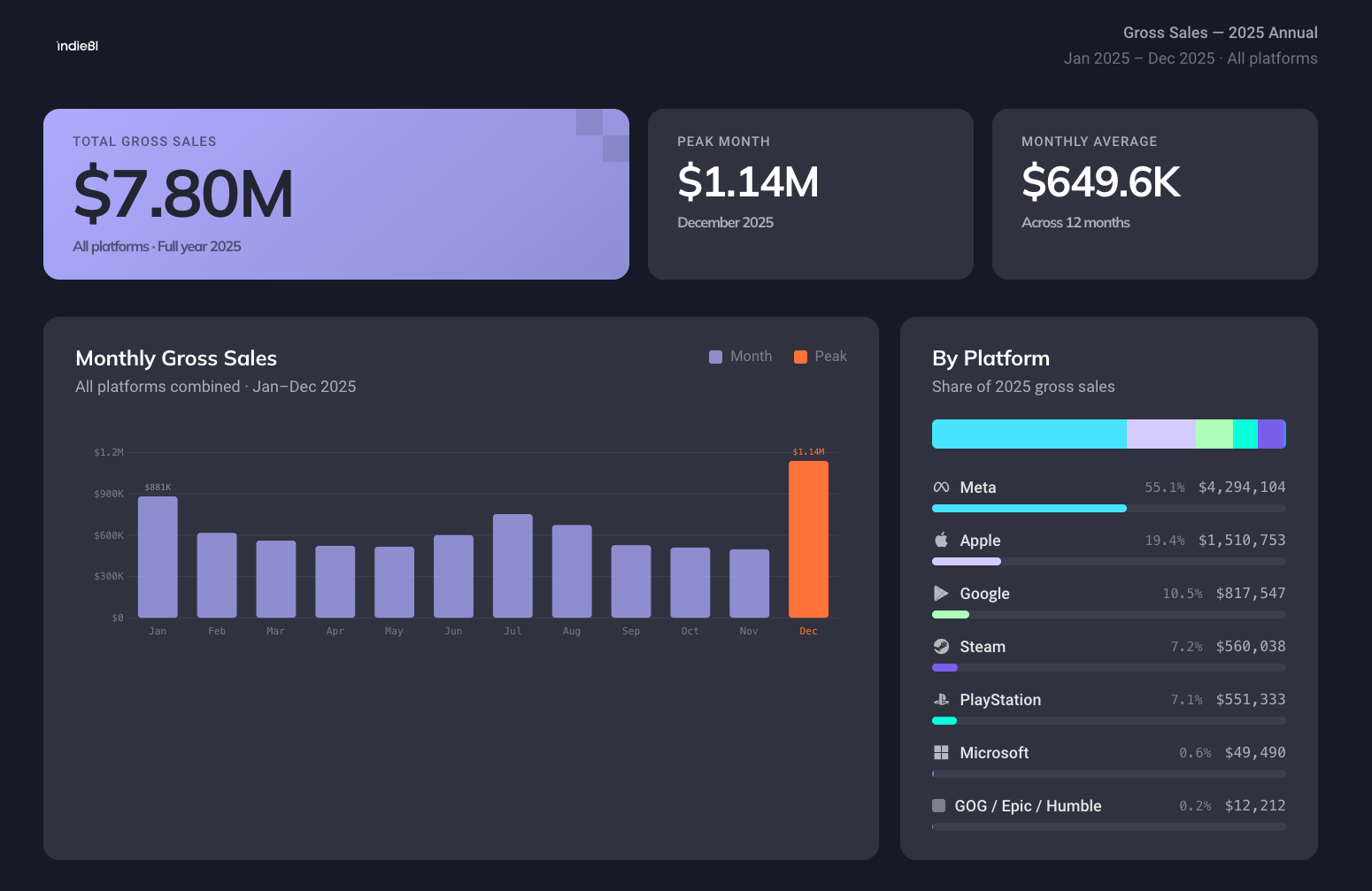
About ten minutes, most of it waiting on downloads. The prompt is further down this page, ready to paste.
What to Prepare
- The Claude desktop app, installed and signed
in. Everything below works the same way in the
claudeterminal CLI if you prefer it, but the desktop app is the gentler route. - Your IndieBI credentials. A User ID that looks like
u-xxxxxxxand a SAS token that starts withsp=rl&st=. If you don't have them yet, generate both in the IndieBI Partner Hub; see Getting Your Credentials. - An empty folder for the workspace. Make it before you start, somewhere you can find again: your analyses will live there.
That's the whole list. The SDK runs on Python and uv, but you don't have to set either up yourself. Claude checks for both, and if one is missing it asks your permission and installs it.
Have your credentials open before you begin
Partway through, Claude creates a .env file in your folder and opens it in
Notepad (TextEdit on a Mac). Replace its two placeholder lines with the ones
Copy Credentials gives you in the Partner Hub, or paste each value over
the placeholder after its =. Save the file and type "done" in the chat. The token goes
straight into the file and never has to pass through the conversation.
The credentials end up only in .env in your folder. That file is
listed in .gitignore, stays on your machine, and is never touched by SDK
updates. The SAS token is scoped to your user and grants read-only access to
your own data.
Step 1: Point Claude at Your Folder
Open the Claude desktop app and start a new session in the empty folder you just made. Claude asks which folder to work in when you begin; pick that one. Everything it downloads, installs and builds stays inside.
First time in Claude? Set these three things
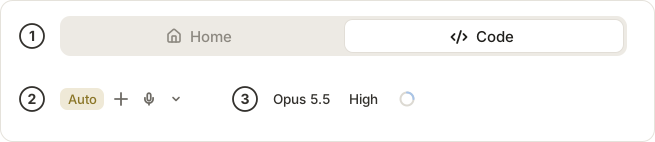
- Switch from Home to Code, at the top of the window. Home is the chat assistant. Code is the one that can read and write files in your folder, which is what the rest of this page needs.
- Set the mode to Auto, on the left of the message box. Setup runs a dozen or so commands, and Auto lets Claude work through them instead of stopping for approval at each one. The prompt below still tells it to ask you before it installs anything.
- Choose Opus 5.5 on High, at the bottom of the window. Opus writes better queries and better-looking charts, and High gives it room to think through your data before it answers.
Step 2: Paste This Prompt
The button in the corner of the block copies the whole thing. Paste it into Claude and send it.
Set up an IndieBI DDA analysis workspace in this folder, then
build me a dashboard.

1. Download https://dda-sdk.indiebi.com/dda-sdk-workspace.zip
   and unzip it here. The archive has no top-level folder, so its
   contents land directly in this directory. Delete the zip
   afterwards.
2. Read the CLAUDE.md you just unzipped, along with
   .claude/skills/dda-analytics/SKILL.md and
   .claude/skills/indiebi-design-system/SKILL.md, and follow them
   for the rest of this session. They arrived after the session
   started, so they won't load on their own.
3. Check that Python 3.12 or newer and uv are both available. If
   either is missing, ask my permission and install it. Then run
   `uv sync`.
4. Set up my credentials the way the dda-analytics skill's
   "Credential handling" section describes: copy `.env.example` to
   `.env` with a shell command, open it for me in my system's text
   editor (Notepad on Windows, TextEdit on macOS), and ask me to
   paste in my IndieBI User ID and SAS token, save the file, and
   type "done" in this chat. Then run the skill's check. Never
   read `.env` or print the token.
5. Build me a dashboard of gross sales for 2025 across all
   platforms: the total for the year, the peak month, the monthly
   average, a month-by-month chart, and a breakdown by platform.
   Use the IndieBI design system, then open it in my browser.
If your data doesn't reach back to 2025, swap the year in the last step for one it does cover.
Claude works through the list, waits while you add your credentials, picks the right tables, fetches only the rows it needs, and opens the finished dashboard in your browser: your own numbers, laid out like the example at the top of this page.
What You Have Now
Your folder holds a working workspace:
- the SDK and its dependencies, installed into
.venv - your credentials in
.env .claude/, holding the skills that teach Claude your tables and the IndieBI design systemdocs/, a local copy of this documentationprojects/, where every analysis lands in its own timestamped folder: the fetch script, the query results, and the HTML. Nothing is hidden, and you can rerun or edit any of it.
Keep going in the same conversation. Ask Claude to drill into one platform, change the date range, switch from revenue to units, or restyle the chart.
From here on, new sessions in this folder load CLAUDE.md and the skills by
themselves. Step 2's reading instruction was only needed because the files
arrived mid-session.
What to Ask Next
These all work out of the box:
- Show me Steam revenue by month for the last year
- Which countries drove the most units sold in Q1 2026?
- How did our last Steam sale impact each product that was included?
- Compare gross revenue across all platforms for 2025
- What promotions ran on Steam last year, and what discounts did we offer?
- Show me our top 5 selling products by units, broken down by platform
How It Works
Claude has the IndieBI DDA SDK and knows your tables and schemas. When you ask a data question it:
- Picks the right table and columns
- Fetches the data with
DuckDBClientorPolarsClient - Aggregates and shapes the result with Polars
- Renders an HTML chart using the IndieBI design system
That knowledge lives in a skill called dda-analytics, which loads automatically
in every session after the first. If a session ever seems to be guessing at your
schema, invoke it directly with /dda-analytics.
If Something Goes Wrong
Claude says credentials are missing, or the token is invalid or expired
Claude opens .env in Notepad (TextEdit on a Mac) and tells you what the SDK
found: a value that's still the placeholder or was pasted into the wrong
spot, a token that has expired, or a token that was rejected before its
expiry date. Put the right two lines in, save the file, and type "done" in
the chat.
A SAS token lasts one year, and once it has expired you can generate a new one in the IndieBI Partner Hub. If a token that hasn't expired is rejected, copy both lines again with Copy Credentials, or ask your IndieBI contact for a new token if the Partner Hub no longer shows them. See Getting Your Credentials.
A table you asked about isn't there
Not every table is provisioned for every account. Claude tells you which ones came back, and your IndieBI contact can say what your plan covers.
Claude doesn't seem to know about your data
Check that the session is running in the workspace folder. If it is, ask
Claude to read CLAUDE.md and .claude/skills/dda-analytics/SKILL.md, or
start a fresh session in that folder and it will pick them up on its own.
A new SDK version is available
Sessions start with a version check, and Claude asks before updating anything. See Updating the SDK.
Next Steps
- Write your own queries to connect from Python and build custom pipelines
- Tables and schema reference for every available table and column